> ## Documentation Index
> Fetch the complete documentation index at: https://fillout-005a867b-dependabot-npm-and-yarn-form-data-4-0-6.mintlify.site/llms.txt
> Use this file to discover all available pages before exploring further.
# Answer piping
> Use previous answers or inputs to control logic, personalize your form, or show read-only fields.
## What is answer piping?
**Answer piping** displays a respondent's previous form inputs into texts or read-only fields for a more personalized and interactive experience. Fillout lets you reference:
* - [previous answers](/answer-piping)
* - [URL parameters](/url-parameters)
* - [calculations](https://www.fillout.com/help/calculations#pre-fill-fields-with-a-calculation)
* - [custom dates](/pre-fill-dates) (e.g., today, a month from now, etc.)
* - [enriched emails](https://www.fillout.com/help/lead-enrichment#how-to-enrich-emails) with company information
* - database records
## Reference field labels
To reference previous form inputs in headings, paragraphs, and banners, type **@**. Then, select the field or question, or simply search for it.
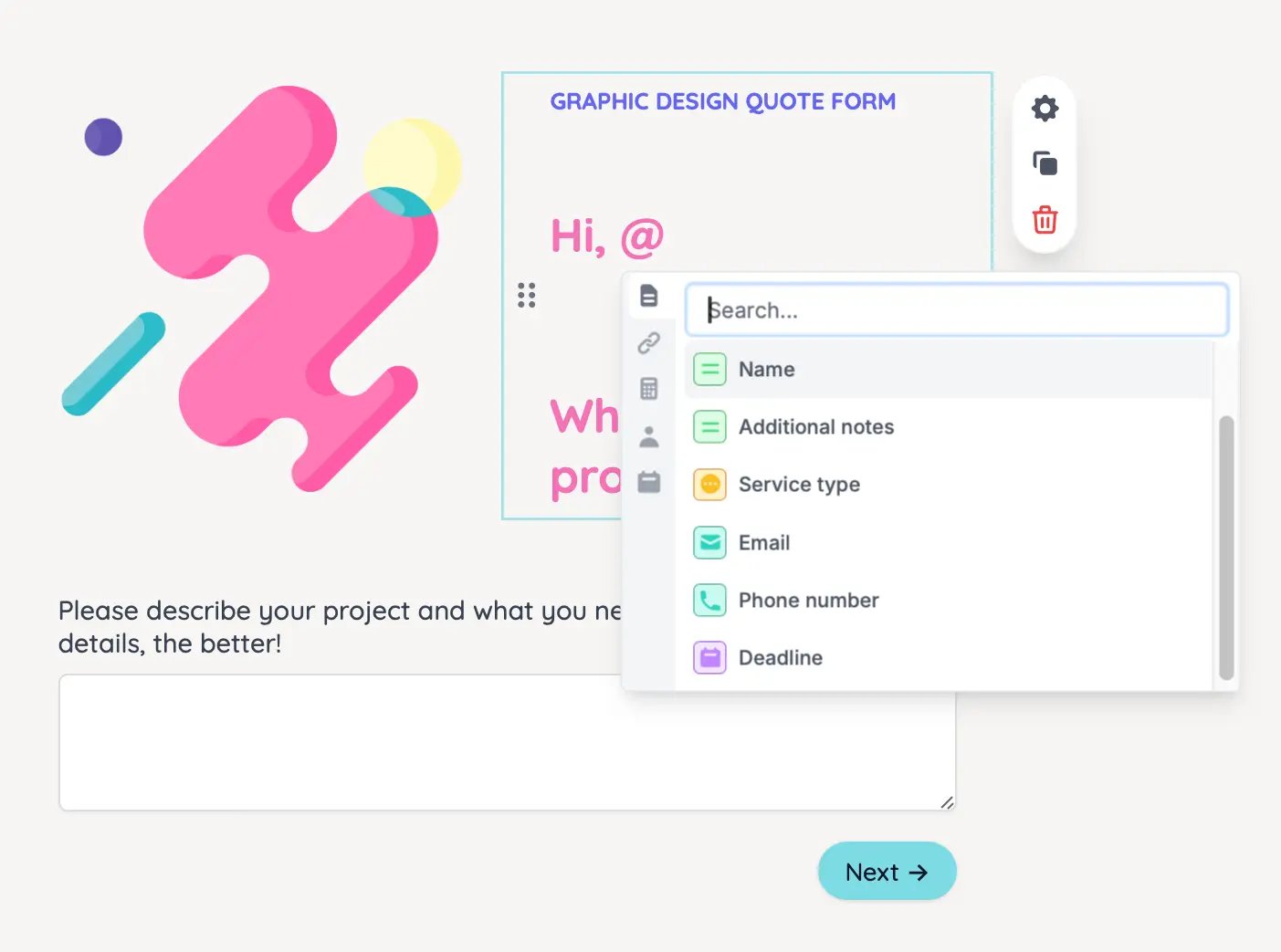 Test your form by clicking `Preview` in the upper right corner.
 Need help troubleshooting? Our team can help. Send an email to [support@fillout.com](mailto:support@fillout.com).
## Reference integration records
If your form is set to [update an existing record](https://www.fillout.com/help/airtable-update-form#how-it-works) in an integration (e.g., in Airtable or HubSpot), you can display values from that record in your form.
In your heading or paragraph, type **@**. Then, click followed by `Updating records` to choose the field you'd like to display.
Need help troubleshooting? Our team can help. Send an email to [support@fillout.com](mailto:support@fillout.com).
## Reference integration records
If your form is set to [update an existing record](https://www.fillout.com/help/airtable-update-form#how-it-works) in an integration (e.g., in Airtable or HubSpot), you can display values from that record in your form.
In your heading or paragraph, type **@**. Then, click followed by `Updating records` to choose the field you'd like to display.
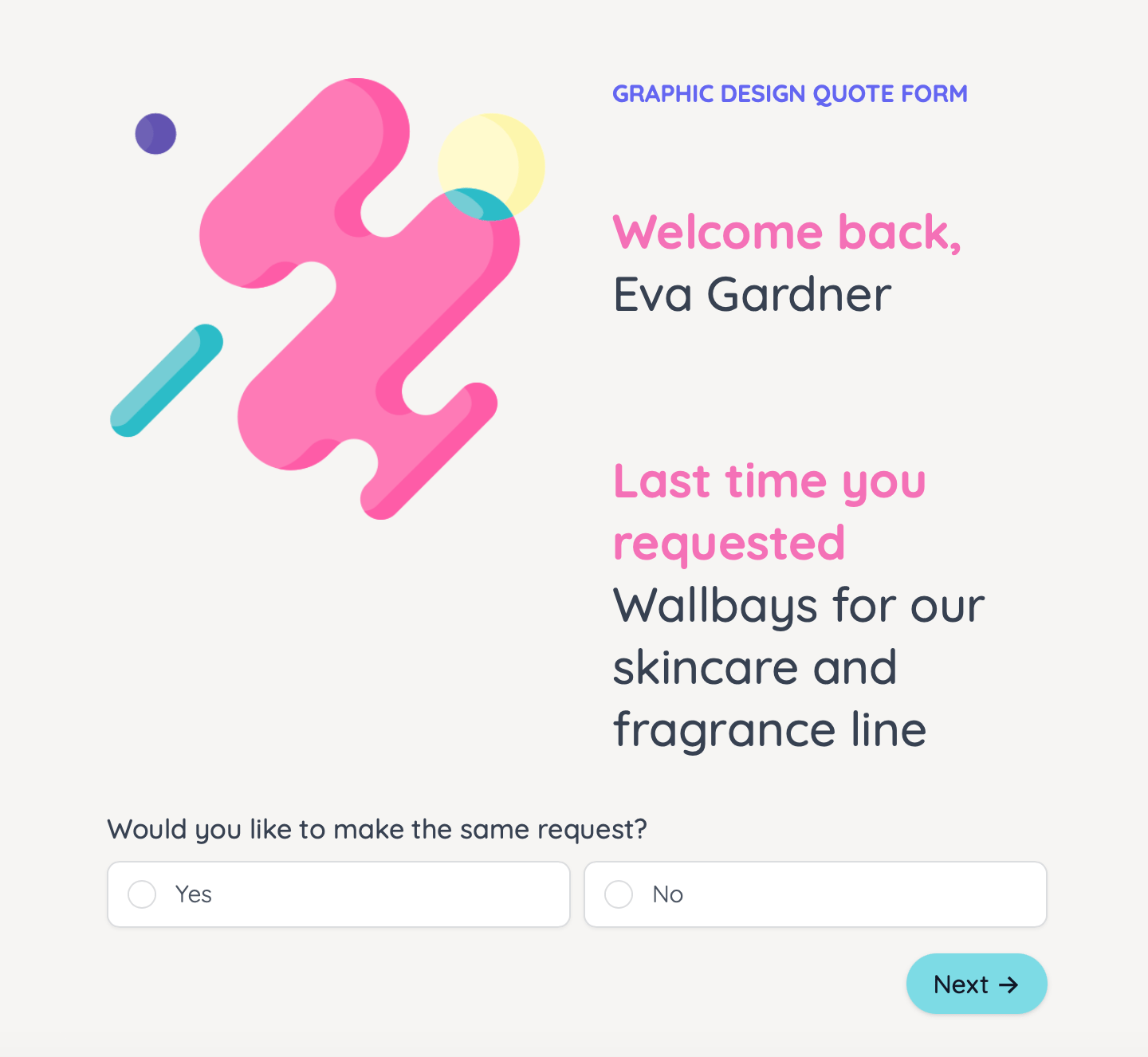
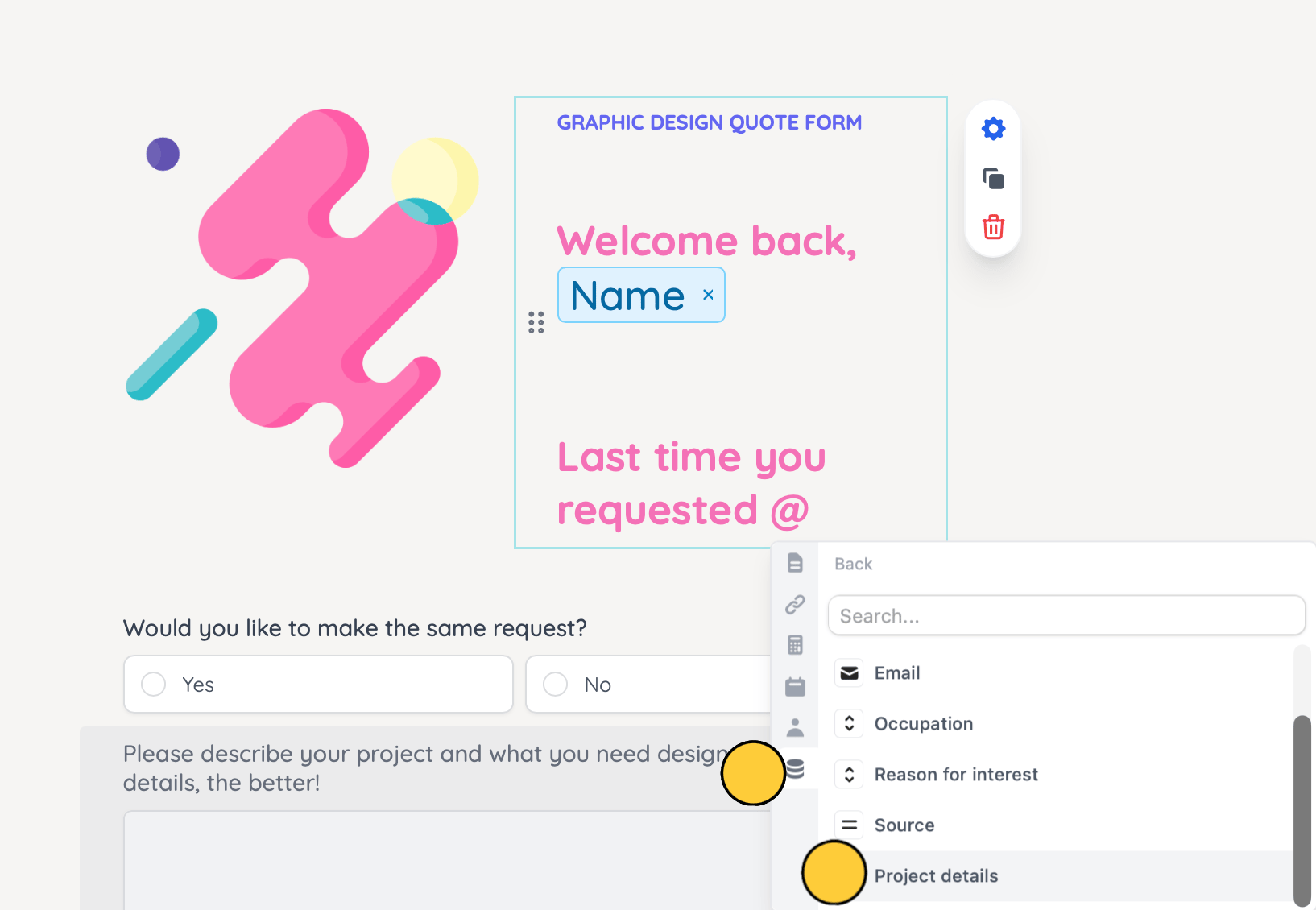 In our example, we'll reference a client's name and project details.
 ## Reference answer fields
Reference inputs in answer text fields and choice fields by [pre-filling](https://www.fillout.com/help/prefill-fields).
Fillout also let's you show or a hide a question or field based on previous form inputs via Logic in the right-hand panel. Check out this [quick guide](https://www.fillout.com/help/conditional-hiding#hide-a-question-based-on-a-condition).
## Reference subform values
You can insert data from a subform into your main form. Learn how to [here](https://www.fillout.com/help/import-subform-data).
## Reference linked record data
To display data from a linked record in your form, check this [guide](https://www.fillout.com/help/record-pickers#reference-fields-from-the-chosen-airtable-record).
## Related articles
Hide or show fields based on answers, URL parameters or data.
Display content to hide, validate and pre-fill fields.
Add text to guide respondents’ answers or choices.
## Reference answer fields
Reference inputs in answer text fields and choice fields by [pre-filling](https://www.fillout.com/help/prefill-fields).
Fillout also let's you show or a hide a question or field based on previous form inputs via Logic in the right-hand panel. Check out this [quick guide](https://www.fillout.com/help/conditional-hiding#hide-a-question-based-on-a-condition).
## Reference subform values
You can insert data from a subform into your main form. Learn how to [here](https://www.fillout.com/help/import-subform-data).
## Reference linked record data
To display data from a linked record in your form, check this [guide](https://www.fillout.com/help/record-pickers#reference-fields-from-the-chosen-airtable-record).
## Related articles
Hide or show fields based on answers, URL parameters or data.
Display content to hide, validate and pre-fill fields.
Add text to guide respondents’ answers or choices.