> ## Documentation Index
> Fetch the complete documentation index at: https://fillout-005a867b-dependabot-npm-and-yarn-form-data-4-0-6.mintlify.site/llms.txt
> Use this file to discover all available pages before exploring further.
# Custom code
> Add custom code into your Fillout forms to inject analytics tracking scripts, add HTML widgets, and more.
## Overview
Adding **custom code** into your Fillout forms can be useful to:
* Inject analytics tracking scripts like Google Tag Manager
* Add HTML widgets like Intercom to the page
If you’re looking to style your form, use the [custom CSS feature](/custom-css) instead.
Custom CSS is available on the **Business** and **Enterprise** plans. For more details on pricing, click [**here**](https://www.fillout.com/pricing).
## How to add a custom code
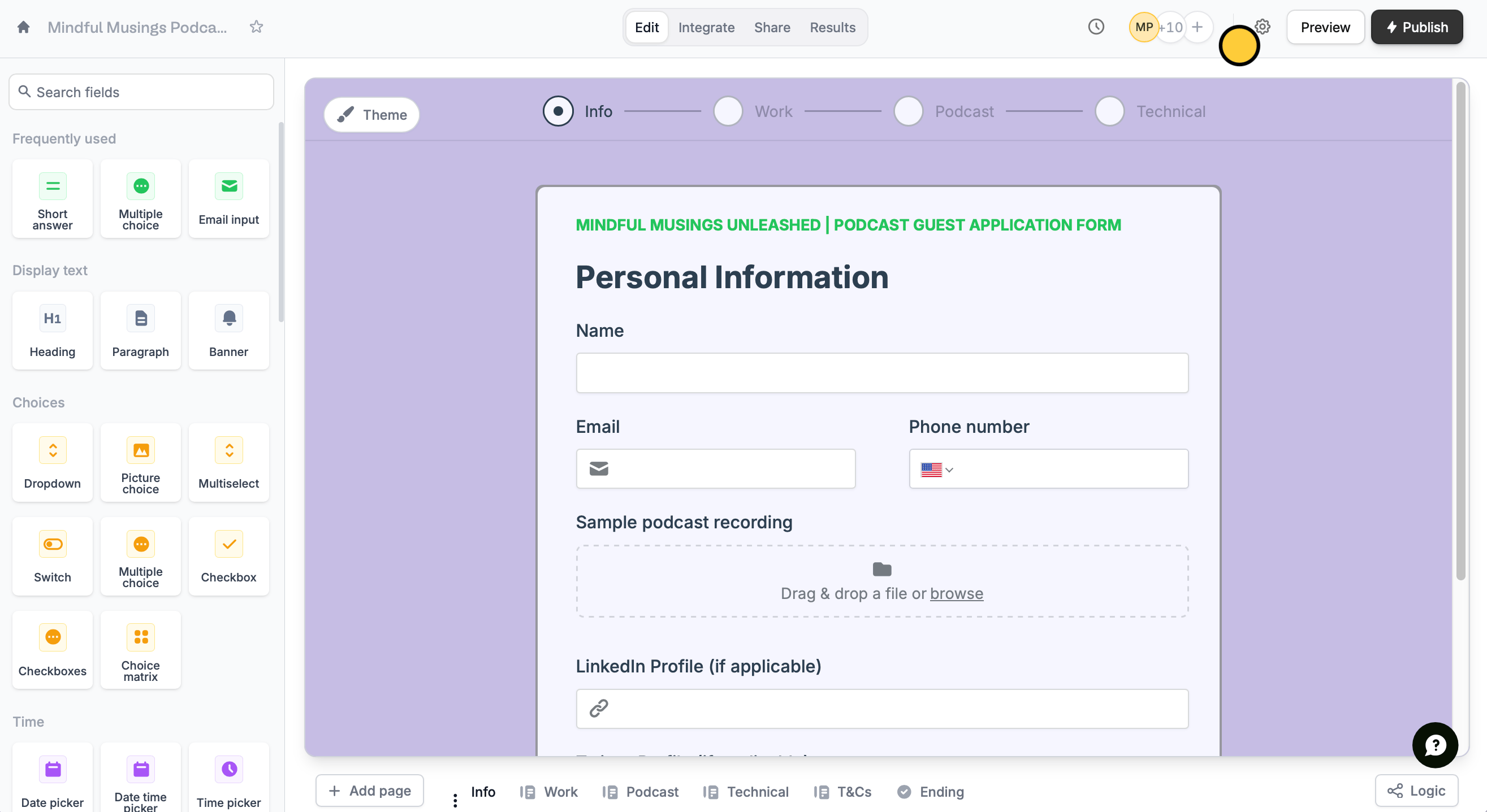
Click in the top menu followed by `Custom code`.
 To run a custom code, you’ll first need to connect a [custom domain](/custom-domains). Custom code will only run on live forms (not in preview mode) on your custom domain.
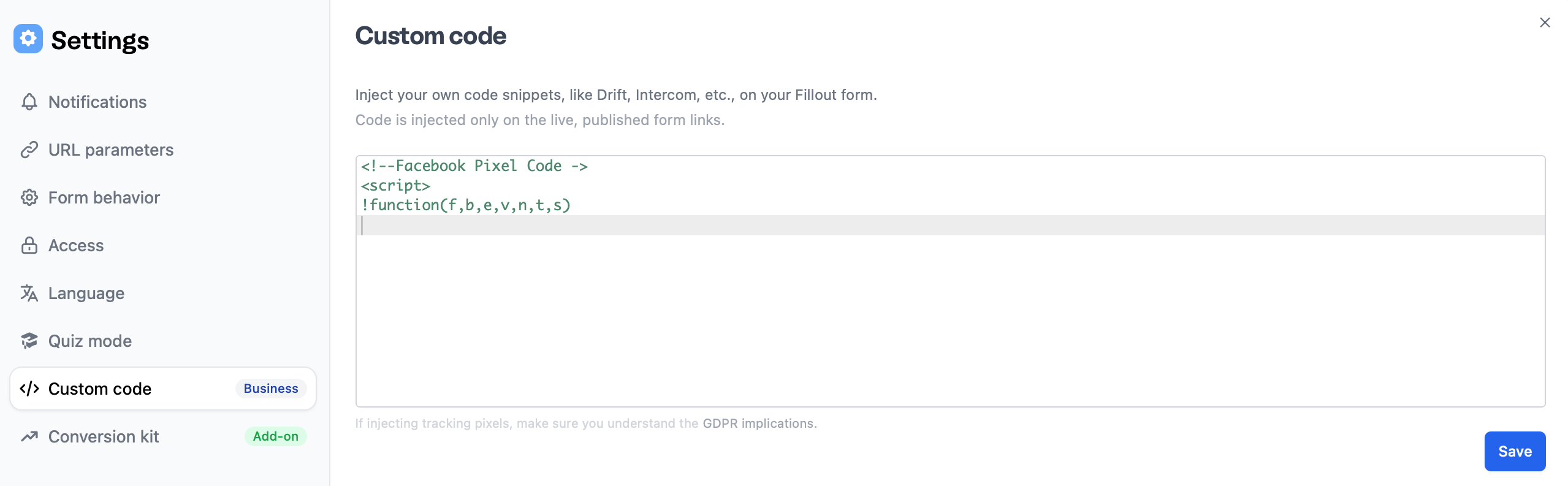
Enter your code in the field.
To run a custom code, you’ll first need to connect a [custom domain](/custom-domains). Custom code will only run on live forms (not in preview mode) on your custom domain.
Enter your code in the field.
 `Publish` your form and try it out!
## Sample use cases
**Facebook pixel**
You can add Facebook pixel tracking to your form either through our [native Facebook pixel integration](/meta-pixel), or through custom code:
**Google Tag Manager**
Google Tag Manager can be a great way to add custom analytics to your form.
## Related articles
Display testimonials, banners, or any static object.
Style your form and apply changes to forms with the same theme.
`Publish` your form and try it out!
## Sample use cases
**Facebook pixel**
You can add Facebook pixel tracking to your form either through our [native Facebook pixel integration](/meta-pixel), or through custom code:
**Google Tag Manager**
Google Tag Manager can be a great way to add custom analytics to your form.
## Related articles
Display testimonials, banners, or any static object.
Style your form and apply changes to forms with the same theme.